IOS Live Activities with Expo & React Native
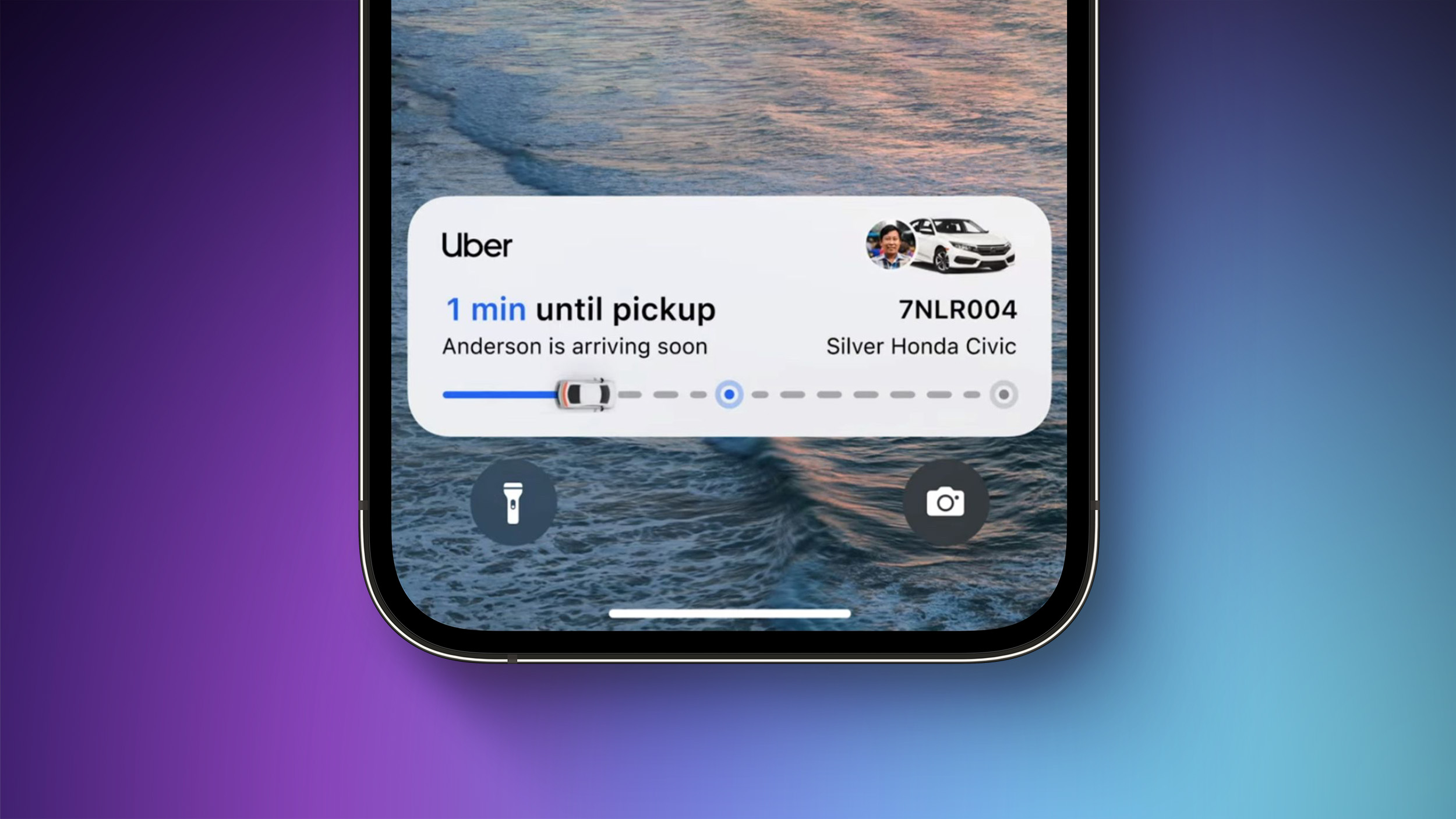
iOS Live Activities are one of those features that make apps feel truly native. You’ve seen them in action—Uber showing your ride’s real-time location on the lock screen, delivery apps tracking your order’s progress, or sports apps displaying live scores in the Dynamic Island. They provide instant, glanceable information without forcing users to open your app.
The question is: can you build this with Expo and React Native?
Absolutely. And in this guide, I’ll show you exactly how.
We’ll cover two approaches for implementing iOS Live Activities in your Expo app:
-
Using native Swift code — Full control with minimal native code. Perfect if you want complete customization and understand how the underlying system works.
-
Using a package — The fastest path to Live Activities. Ideal if you want to get up and running quickly without diving into native code.
Both methods will get you a working Live Activity that updates in real time from your React Native code. We’ll build a football scoreboard widget as our example, but the concepts apply to any use case—ride tracking, delivery updates, workout sessions, or whatever your app needs.
Ready to dive in? Let’s build something that users will actually notice.
You can find the complete project here:
👉 https://github.com/kutaui/expo-live-activity
P.S: If you prefer to read on Medium, here you go
Prerequisites and Drawbacks
Because Live Activities rely on native iOS APIs, there are a couple of important things to know up front:
- You cannot use Expo Go
- You must prebuild your project
- You’ll need Xcode and iOS 16.1+
For the using native Swift code method:
The only additional library we’ll be using is:
@bacons/apple-targets– this lets us create additional Apple targets (like widgets) in an Expo project
For the Using a package method, that package is called expo-live-activity
Creating the Expo Project
We’ll start from a fresh Expo app:
npx create-expo-app@latestOnce the installation finishes, install the required dependencies:
npx expo install @bacons/apple-targets expo-notificationsAt this point, you should be able to prebuild and run the app without any issues.
Method 1: Using Native Swift Code {#method-1-using-native-swift-code}
This approach gives you full control over your Live Activity implementation. You’ll need to write some Swift code, but we’ll keep it as minimal as possible.
Creating the Live Activity Widget
Live Activities are implemented as widgets on iOS. That means we need to create a new Apple target specifically for our Live Activity UI.
Folder structure
At the root of your project, create a folder called targets, and inside it another folder called widget.
Inside targets/widget, create a new Swift file called:
ScoreboardActivityWidget.swiftThis file is responsible for three things:
- Defining the activity attributes
- Rendering the Live Activity UI
- Configuring the Dynamic Island layouts
The code might seem complex initially, but it’s primarily SwiftUI declarative syntax. We’ll break down each component as we go.
Paste the widget implementation into ScoreboardActivityWidget.swift.
import ActivityKit
import WidgetKit
import SwiftUI

struct WidgetAttributes: ActivityAttributes {
    public struct ContentState: Codable, Hashable {
        var homeScore: Int
        var awayScore: Int
        var currentQuarter: Int
        var timeRemaining: String
    }

    var homeTeam: String
    var awayTeam: String
}

struct TeamImage: View {
    let imageName: String
    let systemIcon: String
    let size: CGFloat

    init(imageName: String, systemIcon: String = "house.fill", size: CGFloat) {
        self.imageName = imageName
        self.systemIcon = systemIcon
        self.size = size
    }

    var body: some View {
        if let uiImage = UIImage(named: imageName) {
            Image(uiImage: uiImage)
                .resizable()
                .aspectRatio(contentMode: .fit)
                .frame(width: size, height: size)
        } else {
            Image(systemName: systemIcon)
                .resizable()
                .aspectRatio(contentMode: .fit)
                .frame(width: size, height: size)
        }
    }
}

struct ScoreboardActivityWidget: Widget {
    var body: some WidgetConfiguration {
        ActivityConfiguration(for: WidgetAttributes.self) { context in
            HStack {
                HStack {
                    TeamImage(imageName: "home", systemIcon: "house.fill", size: 30)
                    VStack(alignment: .leading) {
                        Text(context.attributes.homeTeam)
                        Text("\(context.state.homeScore)")
                            .font(.headline)
                    }
                }
                Spacer()
                Text("\(context.state.timeRemaining)")
                Spacer()
                HStack {
                    VStack(alignment: .trailing) {
                        Text(context.attributes.awayTeam)
                        Text("\(context.state.awayScore)")
                            .font(.headline)
                    }
                    TeamImage(imageName: "away", systemIcon: "figure.walk", size: 30)
                }
            }
            .padding()
            .activityBackgroundTint(Color.black)
            .foregroundColor(Color.white)

        } dynamicIsland: { context in
            DynamicIsland {
                DynamicIslandExpandedRegion(.leading) {
                    VStack(alignment: .leading) {
                        TeamImage(imageName: "home", systemIcon: "house.fill", size: 40)
                        Text(context.attributes.homeTeam)
                            .font(.caption)
                    }
                }
                DynamicIslandExpandedRegion(.trailing) {
                    VStack(alignment: .trailing) {
                        TeamImage(imageName: "away", systemIcon: "figure.walk", size: 40)
                        Text(context.attributes.awayTeam)
                            .font(.caption)
                    }
                }
                DynamicIslandExpandedRegion(.bottom) {
                    HStack {
                        Text("\(context.state.homeScore)")
                            .font(.title2)
                        Spacer()
                        Text("Q\(context.state.currentQuarter) \(context.state.timeRemaining)")
                        Spacer()
                        Text("\(context.state.awayScore)")
                            .font(.title2)
                    }
                }
            } compactLeading: {
                HStack(spacing: 4) {
                    TeamImage(imageName: "home", systemIcon: "house.fill", size: 16)
                    Text("\(context.state.homeScore)")
                }
            } compactTrailing: {
                HStack(spacing: 4) {
                    Text("\(context.state.awayScore)")
                    TeamImage(imageName: "away", systemIcon: "figure.walk", size: 16)
                }
            } minimal: {
                TeamImage(imageName: "home", systemIcon: "house.fill", size: 20)
            }
            .widgetURL(URL(string: "http://www.apple.com"))
            .keylineTint(Color.red)
        }
    }
}
What this file does
At a high level:
- The
WidgetAttributesstruct conforms toActivityAttributesand defines:ContentStatestruct: Holds dynamic data that changes during the activity’s lifetime (home score, away score, current quarter, and time remaining)- Static properties:
homeTeamandawayTeamthat identify the teams playing
- The
TeamImageview provides a reusable image component with icon fallback:- First attempts to load an image from your asset bundle using the provided
imageName - If the image asset doesn’t exist, it falls back to a system SF Symbol icon specified by
systemIcon - This ensures your Live Activity always displays something, even if you haven’t added custom images yet
- You can customize the fallback icon by changing the
systemIconparameter (e.g.,"sportscourt.fill","trophy.fill","person.3.fill")
- First attempts to load an image from your asset bundle using the provided
- The
ActivityConfigurationclosure defines the Lock Screen appearance:- Uses SwiftUI’s declarative syntax to compose the UI
context.stateprovides access to the currentContentState- Images/icons are displayed using the
TeamImagecomponent with appropriate sizing
- The
dynamicIslandclosure defines four layouts:DynamicIslandExpandedRegion: Custom views for the expanded state (leading, trailing, bottom regions)compactLeading/compactTrailing: Views for the compact state on iPhone 14 Pro and newerminimal: Minimal representation (typically just an icon)
Adding Images and Icons
You have flexibility in how you display visual elements in your Live Activity. You can:
-
Use custom images: Add your image assets (PNG, JPEG, or other supported formats) to your Xcode project’s asset catalog. When you reference them by name (e.g.,
"home","away"), they’ll be used automatically. Keep in mind that Live Activity images should be optimized and ideally under 4KB. -
Use SF Symbols: Apple’s built-in icon library provides thousands of icons that work perfectly in Live Activities. You can use any SF Symbol name (like
"house.fill","figure.walk","sportscourt.fill") as a fallback or primary icon. SF Symbols are lightweight, scale beautifully, and adapt to different display contexts. -
Mix both approaches: The
TeamImagecomponent demonstrates a best practice—try to load a custom image first, but have a system icon ready as a fallback. This ensures your widget always renders correctly, even during development when you might not have all assets ready yet.
To add custom images, drag them into your Xcode project’s asset catalog (Assets.xcassets), or include them in your widget target’s resources. The image names you use in TeamImage(imageName:) should match the asset names exactly (without file extensions).
The widget automatically adapts its appearance between the Lock Screen and Dynamic Island depending on the device’s capabilities.
Widget entry point
Next, create another Swift file in the same folder:
index.swiftThis file serves as the widget target’s entry point, registering all widgets in this target with iOS.
import WidgetKit
import SwiftUI

@main
struct exportWidgets: WidgetBundle {
    var body: some Widget {
        // Export widgets here
        ScoreboardActivityWidget()
    }
}
iOS requires this file to discover and load your widget.
Widget configuration files
Now we need to add two configuration files next to ScoreboardActivityWidget.swift and index.swift.
expo-target.config.js
This configuration file instructs Expo on how to generate the Apple target when you run prebuild.
/** @type {import('@bacons/apple-targets/app.plugin').ConfigFunction} */
module.exports = (config) => ({
  type: "widget",
  // icon: 'https://github.com/expo.png',
  entitlements: {
    /* Add entitlements */
  },
  frameworks: ["SwiftUI", "ActivityKit"],
});
It defines things like:
- Target name
- Product type (widget extension)
- Bundle identifier
- iOS deployment version
Info.plist
Each Apple target requires an Info.plist file that provides metadata about the widget to iOS.
<?xml version="1.0" encoding="UTF-8"?>
<!DOCTYPE plist PUBLIC "-//Apple//DTD PLIST 1.0//EN" "http://www.apple.com/DTDs/PropertyList-1.0.dtd">
<plist version="1.0">
  <dict>
    <key>CFBundleShortVersionString</key>
    <string>1.0.0</string>
    <key>CFBundleVersion</key>
    <string>1</string>
    <key>NSExtension</key>
    <dict>
      <key>NSExtensionPointIdentifier</key>
      <string>com.apple.widgetkit-extension</string>
    </dict>
  </dict>
</plist>
This file includes:
- The widget’s display name
- Supported widget families
- Extension configuration
- Required capabilities
Your Live Activity widget target is now complete and ready to use.
Adding the Live Activity Module
With the widget in place, we need a JavaScript interface to control it.
Expo Modules provide the solution. They let us create a native bridge that exposes iOS APIs to JavaScript, enabling us to:
- Start a Live Activity
- Update its state dynamically
- End it when finished
We’ll build a local Expo module named live-activity-manager that acts as the communication layer between React Native and iOS Live Activity APIs.
Creating the module folders
At the root of your project, create:
modules/
  live-activity-manager/
Inside that folder, create two more directories:
modules/
  live-activity-manager/
    ios/
src/ios/will contain Swift codesrc/will contain TypeScript code exposed to your app
Module configuration files
Inside modules/live-activity-manager, create the following files:
package.json
This identifies the folder as a local package that Expo will link during the prebuild process.
{
  "name": "live-activity-manager",
  "version": "1.0.0",
  "main": "./index.ts",
  "types": "./src/LiveActivityManager.types.ts",
  "private": true
}
expo-module.config.json
Expo Modules requires this file to specify the module name and which platforms it supports.
{
  "platforms": ["apple"],
  "apple": {
    "modules": ["LiveActivityManagerModule"]
  }
}
TypeScript entry files
Inside the src folder, create:
src/
  LiveActivityManager.types.ts
  LiveActivityManagerModule.ts
index.ts
LiveActivityManager.types.ts
Here we define the TypeScript interfaces that describe the data structure for your Live Activity.
type BaseActivityResponse = {
  isSuccess: boolean;
  message?: string;
};

export type ActivityStartResponse = {
  id?: string;
} & BaseActivityResponse;

export type ActivityStopResponse = {
  id?: string;
} & BaseActivityResponse;

export type ActivityOngoingResponse = {
  isSuccess: boolean;
};

export type StartLiveActivityFn = (
  homeTeam: string,
  awayTeam: string,
  homeScore: number,
  awayScore: number,
  currentQuarter: number,
  timeRemaining: string
) => Promise<ActivityStartResponse>;

export type OngoingLiveActivityFn = (
  id: string,
  homeScore: number,
  awayScore: number,
  currentQuarter: number,
  timeRemaining: string
) => Promise<ActivityOngoingResponse>;

export type StopLiveActivityFn = (id: string) => Promise<ActivityStopResponse>;
LiveActivityManagerModule.ts
This file bridges the native module to JavaScript. It handles:
- Platform detection (returns null on Android)
- Response mapping from native formats to TypeScript types via helper functions
- Safe defaults for optional values using nullish coalescing
- A type-safe API surface for your React Native components
import { requireNativeModule } from "expo";
import { Platform } from "react-native";
import type {
  ActivityOngoingResponse,
  ActivityStartResponse,
  ActivityStopResponse,
} from "./LiveActivityManager.types";

const nativeModule =
  Platform.OS === "android" ? null : requireNativeModule("LiveActivityManager");

type NativeModuleShape = {
  beginActivity?: (
    homeTeam: string,
    awayTeam: string,
    homeScore: number,
    awayScore: number,
    currentQuarter: number,
    timeRemaining: string
  ) => Promise<any> | any;
  updateActivity?: (
    id: string,
    homeScore: number,
    awayScore: number,
    currentQuarter: number,
    timeRemaining: string
  ) => Promise<any> | any;
  endActivity?: (id: string) => Promise<any> | any;
  fetchPushToken?: () => Promise<any> | any;
} | null;

const native: NativeModuleShape = nativeModule as any;

const mapStartResponse = (value: any): ActivityStartResponse => ({
  id: value?.activityId ?? value?.id,
  isSuccess: Boolean(value?.success ?? value?.isSuccess),
  message: value?.errorMessage ?? value?.message,
});

const mapStopResponse = (value: any): ActivityStopResponse => ({
  id: value?.activityId ?? value?.id,
  isSuccess: Boolean(value?.success ?? value?.isSuccess),
  message: value?.errorMessage ?? value?.message,
});

const mapOngoingResponse = (value: any): ActivityOngoingResponse => ({
  isSuccess: Boolean(value?.success ?? value?.isSuccess),
});

export const LiveActivityManagerNativeModule = {
  start: (
    homeTeam: string,
    awayTeam: string,
    homeScore: number,
    awayScore: number,
    currentQuarter: number,
    timeRemaining: string
  ): Promise<ActivityStartResponse> => {
    if (!native?.beginActivity) {
      return Promise.resolve({ isSuccess: false });
    }

    return Promise.resolve(
      native.beginActivity(
        homeTeam,
        awayTeam,
        homeScore,
        awayScore,
        currentQuarter,
        timeRemaining
      )
    ).then(mapStartResponse);
  },

  ongoing: (
    id: string,
    homeScore: number,
    awayScore: number,
    currentQuarter: number,
    timeRemaining: string
  ): Promise<ActivityOngoingResponse> => {
    if (!native?.updateActivity) {
      return Promise.resolve({ isSuccess: false });
    }

    return Promise.resolve(
      native.updateActivity(
        id,
        homeScore,
        awayScore,
        currentQuarter,
        timeRemaining
      )
    ).then(mapOngoingResponse);
  },

  stop: (id: string): Promise<ActivityStopResponse> => {
    if (!native?.endActivity) {
      return Promise.resolve({ isSuccess: false });
    }

    return Promise.resolve(native.endActivity(id)).then(mapStopResponse);
  },

  getPushToStartToken: () => {
    if (!native?.fetchPushToken) {
      return Promise.resolve({ isSuccess: false });
    }

    return Promise.resolve(native.fetchPushToken());
  },
};

export default LiveActivityManagerNativeModule;
index.ts
This exports the module’s public API.
// Reexport the native module. On web, it will be resolved to ExpoLiveControllerModule.web.ts
// and on native platforms to ExpoLiveControllerModule.ts
export * from "./src/LiveActivityManager.types";
export {
  default,
  LiveActivityManagerNativeModule,
} from "./src/LiveActivityManagerModule";
iOS native files
Now move into the ios folder and create:
ios/
  LiveActivityManager.podspec
  LiveActivityManagerModule.swift
LiveActivityManager.podspec
CocoaPods uses this file to understand how to integrate the module into your iOS project.
Pod::Spec.new do |s|
    s.name           = 'LiveActivityManager'
    s.version        = '1.0.0'
    s.summary        = 'A sample project summary'
    s.description    = 'A sample project description'
    s.author         = ''
    s.homepage       = 'https://docs.expo.dev/modules/'
    s.platforms      = {
      :ios => '15.1',
      :tvos => '15.1'
    }
    s.source         = { git: '' }
    s.static_framework = true

    s.dependency 'ExpoModulesCore'

    # Swift/Objective-C compatibility
    s.pod_target_xcconfig = {
      'DEFINES_MODULE' => 'YES',
    }

    s.source_files = "**/*.{h,m,mm,swift,hpp,cpp}"
  end
LiveActivityManagerModule.swift
This Swift file contains the core Live Activity implementation that handles starting, updating, and stopping activities.
import ActivityKit
import SwiftUI
import ExpoModulesCore

// MARK: - Errors

final class FeatureUnavailableError: GenericException<Void> {
    override var reason: String {
        return "This device does not support Live Activities."
    }
}

// MARK: - Activity Attributes

struct WidgetAttributes: ActivityAttributes {
    public struct ContentState: Codable, Hashable {
        // Dynamic state
        var homeScore: Int
        var awayScore: Int
        var currentQuarter: Int
        var timeRemaining: String
    }

    // Static state
    var homeTeam: String
    var awayTeam: String
}

// MARK: - Return Models

struct StartResult: Record {
    @Field var activityId: String?
    @Field var success: Bool
    @Field var errorMessage: String?
}

struct StopResult: Record {
    @Field var activityId: String?
    @Field var success: Bool
    @Field var errorMessage: String?
}

struct UpdateResult: Record {
    @Field var success: Bool
}

struct TokenResult: Record {
    @Field var token: String?
    @Field var success: Bool
    @Field var errorMessage: String?
}

// MARK: - Expo Module

public class LiveActivityManagerModule: Module {

    public func definition() -> ModuleDefinition {
        Name("LiveActivityManager")

        // MARK: Start Activity

        AsyncFunction("beginActivity") { (
            homeTeam: String,
            awayTeam: String,
            homeScore: Int,
            awayScore: Int,
            currentQuarter: Int,
            timeRemaining: String,
            promise: Promise
        ) in

            guard #available(iOS 16.2, *) else {
                throw FeatureUnavailableError(())
            }

            guard ActivityAuthorizationInfo().areActivitiesEnabled else {
                throw FeatureUnavailableError(())
            }

            let attributes = WidgetAttributes(homeTeam: homeTeam, awayTeam: awayTeam)
            let contentState = WidgetAttributes.ContentState(
                homeScore: homeScore,
                awayScore: awayScore,
                currentQuarter: currentQuarter,
                timeRemaining: timeRemaining
            )

            let content = ActivityContent(state: contentState, staleDate: nil)

            do {
                let activity = try Activity.request(
                    attributes: attributes,
                    content: content
                )

                promise.resolve(
                    StartResult(
                        activityId: Field(wrappedValue: activity.id),
                        success: Field(wrappedValue: true)
                    )
                )

            } catch {
                promise.resolve(
                    StartResult(
                        success: Field(wrappedValue: false),
                        errorMessage: Field(
                            wrappedValue: "Unable to start Live Activity: \(error.localizedDescription)"
                        )
                    )
                )
            }
        }

        // MARK: Stop Activity

        AsyncFunction("endActivity") { (activityId: String, promise: Promise) in

            guard #available(iOS 16.2, *) else {
                throw FeatureUnavailableError(())
            }

            Task {
                guard let activity = Activity<WidgetAttributes>.activities.first(
                    where: { $0.id == activityId }
                ) else {
                    return promise.resolve(
                        StopResult(
                            success: Field(wrappedValue: false),
                            errorMessage: Field(wrappedValue: "Activity not found")
                        )
                    )
                }

                await activity.end(dismissalPolicy: .immediate)

                promise.resolve(
                    StopResult(
                        activityId: Field(wrappedValue: activityId),
                        success: Field(wrappedValue: true)
                    )
                )
            }
        }

        // MARK: Update Activity

        AsyncFunction("updateActivity") { (
            activityId: String,
            homeScore: Int,
            awayScore: Int,
            currentQuarter: Int,
            timeRemaining: String,
            promise: Promise
        ) in

            guard #available(iOS 16.2, *) else {
                throw FeatureUnavailableError(())
            }

            let updatedState = WidgetAttributes.ContentState(
                homeScore: homeScore,
                awayScore: awayScore,
                currentQuarter: currentQuarter,
                timeRemaining: timeRemaining
            )

            let updatedContent = ActivityContent(
                state: updatedState,
                staleDate: nil
            )

            Task {
                let activity = Activity<WidgetAttributes>.activities.first {
                    $0.id == activityId
                }

                guard let active = activity else {
                    return promise.resolve(UpdateResult(success: Field(wrappedValue: false)))
                }

                do {
                    try await active.update(updatedContent)
                    promise.resolve(UpdateResult(success: Field(wrappedValue: true)))
                } catch {
                    promise.resolve(UpdateResult(success: Field(wrappedValue: false)))
                }
            }
        }

        // MARK: Push-to-Start Token

        AsyncFunction("fetchPushToken") { (promise: Promise) in
            guard #available(iOS 17.2, *) else {
                return promise.resolve(
                    TokenResult(
                        success: Field(wrappedValue: false),
                        errorMessage: Field(wrappedValue: "Requires iOS 17.2 or newer")
                    )
                )
            }

            Task {
                do {
                    for await data in Activity<WidgetAttributes>.pushToStartTokenUpdates {
                        let token = data.map { String(format: "%02x", $0) }.joined()

                        return promise.resolve(
                            TokenResult(
                                token: Field(wrappedValue: token),
                                success: Field(wrappedValue: true)
                            )
                        )
                    }

                    promise.resolve(
                        TokenResult(
                            success: Field(wrappedValue: false),
                            errorMessage: Field(wrappedValue: "No token received")
                        )
                    )
                }
            }
        }
    }
}
Final folder structure
At this point, your project should include the following structure:
modules/
  live-activity-manager/
    ios/
      LiveActivityManager.podspec
      LiveActivityManagerModule.swift
    src/
      LiveActivityManager.types.ts
      LiveActivityManagerModule.ts
    index.ts
    expo-module.config.json
    package.json
With this structure in place, you have a complete Live Activity bridge that lets you start activities from JavaScript, push real-time updates, and see changes reflected immediately on the Lock Screen and Dynamic Island.
Using the Live Activity from React Native
With the widget and native module complete, you can now control Live Activities directly from React Native.
The goal was to make this feel like any other JavaScript API—no Swift knowledge required, no Xcode configuration needed, just straightforward function calls from your React components.
Let’s look at how this works in practice.
import { StatusBar } from "expo-status-bar";
import { useState } from "react";
import { StyleSheet, Text, TouchableOpacity, View } from "react-native";
import type { ActivityStartResponse } from "../../modules/live-activity-manager/src/LiveActivityManager.types";
import { LiveActivityManagerNativeModule } from "../../modules/live-activity-manager/src/LiveActivityManagerModule";

export default function App() {
  const [activity, setActivity] = useState<ActivityStartResponse | null>(null);
  const [homeScore, setHomeScore] = useState(0);
  const [awayScore, setAwayScore] = useState(0);

  const homeTeam = "Home Team";
  const awayTeam = "Away Team";

  const handleStartActivity = async () => {
    const result = await LiveActivityManagerNativeModule.start(
      homeTeam,
      awayTeam,
      homeScore,
      awayScore,
      1,
      "15:00"
    );
    setActivity(result);
  };

  const handleUpdateScore = async (team: "home" | "away", points: number) => {
    if (!activity?.id) return;

    const newHomeScore = team === "home" ? homeScore + points : homeScore;
    const newAwayScore = team === "away" ? awayScore + points : awayScore;

    setHomeScore(newHomeScore);
    setAwayScore(newAwayScore);

    await LiveActivityManagerNativeModule.ongoing(
      activity.id,
      newHomeScore,
      newAwayScore,
      1,
      "12:34"
    );
  };

  const handleStopActivity = async () => {
    if (!activity?.id) return;
    await LiveActivityManagerNativeModule.stop(activity.id);
    setActivity(null);
    setHomeScore(0);
    setAwayScore(0);
  };

  return (
    <View style={styles.container}>
      <Text style={styles.title}>Football Scoreboard</Text>
      <StatusBar style="auto" />

      <View style={styles.scoreboard}>
        <View style={styles.team}>
          <Text style={styles.teamName}>{homeTeam}</Text>
          <Text style={styles.score}>{homeScore}</Text>
        </View>
        <Text style={styles.vs}>VS</Text>
        <View style={styles.team}>
          <Text style={styles.teamName}>{awayTeam}</Text>
          <Text style={styles.score}>{awayScore}</Text>
        </View>
      </View>

      {!activity ? (
        <TouchableOpacity style={styles.button} onPress={handleStartActivity}>
          <Text style={styles.buttonText}>Start Live Activity</Text>
        </TouchableOpacity>
      ) : (
        <>
          <View style={styles.buttonRow}>
            <TouchableOpacity
              style={styles.scoreButton}
              onPress={() => handleUpdateScore("home", 6)}
            >
              <Text style={styles.buttonText}>Home TD (6)</Text>
            </TouchableOpacity>
            <TouchableOpacity
              style={styles.scoreButton}
              onPress={() => handleUpdateScore("home", 3)}
            >
              <Text style={styles.buttonText}>Home FG (3)</Text>
            </TouchableOpacity>
          </View>
          <View style={styles.buttonRow}>
            <TouchableOpacity
              style={styles.scoreButton}
              onPress={() => handleUpdateScore("away", 6)}
            >
              <Text style={styles.buttonText}>Away TD (6)</Text>
            </TouchableOpacity>
            <TouchableOpacity
              style={styles.scoreButton}
              onPress={() => handleUpdateScore("away", 3)}
            >
              <Text style={styles.buttonText}>Away FG (3)</Text>
            </TouchableOpacity>
          </View>

          <TouchableOpacity
            style={[styles.button, styles.stopButton]}
            onPress={handleStopActivity}
          >
            <Text style={styles.buttonText}>Stop Live Activity</Text>
          </TouchableOpacity>
        </>
      )}
    </View>
  );
}

const styles = StyleSheet.create({
  container: {
    flex: 1,
    backgroundColor: "#fff",
    alignItems: "center",
    justifyContent: "center",
    padding: 20,
  },
  title: {
    fontSize: 24,
    fontWeight: "bold",
    marginBottom: 20,
  },
  scoreboard: {
    flexDirection: "row",
    alignItems: "center",
    justifyContent: "space-around",
    width: "100%",
    marginBottom: 30,
  },
  team: {
    alignItems: "center",
  },
  teamName: {
    fontSize: 18,
    fontWeight: "600",
    marginBottom: 5,
  },
  score: {
    fontSize: 48,
    fontWeight: "bold",
  },
  vs: {
    fontSize: 24,
    fontWeight: "bold",
  },
  button: {
    marginVertical: 10,
    paddingVertical: 12,
    paddingHorizontal: 30,
    backgroundColor: "blue",
    borderRadius: 8,
  },
  stopButton: {
    backgroundColor: "red",
  },
  buttonText: {
    color: "white",
    fontSize: 16,
    fontWeight: "bold",
    textAlign: "center",
  },
  buttonRow: {
    flexDirection: "row",
    justifyContent: "space-around",
    width: "100%",
    marginBottom: 10,
  },
  scoreButton: {
    backgroundColor: "green",
    paddingVertical: 10,
    paddingHorizontal: 20,
    borderRadius: 8,
    marginHorizontal: 5,
    flex: 1,
  },
});
Importing Live Activity Module
Import the module like any other dependency. You’ll import both the module and its TypeScript types, which provide full type safety and autocomplete support in your editor.
At this point, LiveActivityManagerNativeModule exposes three main actions:
start→ starts a new Live Activityongoing→ updates an existing Live Activitystop→ ends a Live Activity
Starting a Live Activity
Calling start creates a new Live Activity on iOS, sends the initial state to the widget, and returns an activity ID. Store this ID in React state—you’ll need it to update or stop the activity later.
Once the function resolves, the Live Activity appears on the Lock Screen and Dynamic Island (if your device supports it).
Updating the Live Activity state
Use the ongoing method to push updates to an active Live Activity. Pass the activity ID along with the new state (scores, quarter, time remaining). You can have multiple activities running simultaneously, so the ID ensures you’re updating the correct one.
Each button press triggers an instant UI update without restarting the activity. Internally, iOS calls Activity.update() with the new ContentState, causing the widget to re-render with fresh data. This matches how production sports apps work—the activity persists while its content updates in real time.
Stopping the Live Activity
Call stop with the activity ID to end a Live Activity. This triggers activity.end(dismissalPolicy: .immediate), which removes it from the Lock Screen and Dynamic Island immediately. You can also use .default dismissal policy for a delayed removal.
After stopping, clear the activity ID from state to disable update buttons. iOS automatically cleans up activities that exceed their maximum lifetime (around 8 hours), so manual cleanup isn’t always necessary.
Why this approach works well
The main advantage is developer experience. From React Native, you get a clean async API without widget-specific logic, platform checks, or Xcode configuration. All the native complexity—widget UI, Dynamic Island layouts, ActivityKit integration—stays on the native side, wrapped in an Expo Module.
Testing the Live Activity
A few final configuration steps, then you can test on a simulator or physical device.
First, we need to add @bacons/apple-targets to app.json inside plugins section, so it would look like this:
    "plugins": [
      "expo-router",
      [
        "expo-splash-screen",
        {
          "image": "./assets/images/splash-icon.png",
          "imageWidth": 200,
          "resizeMode": "contain",
          "backgroundColor": "#ffffff",
          "dark": {
            "backgroundColor": "#000000"
          }
        }
      ],
      "@bacons/apple-targets"
    ],
Then, again inside the app.json file, we need to add the below part inside ios section:
      "infoPlist": {
        "NSSupportsLiveActivities": true
      },
      "entitlements": {
        "com.apple.security.application-groups": [
          "com.kutaui.expoliveactivity"
        ]
      }
Now we can run npx expo prebuild -p ios --clean and generate our native ios code.
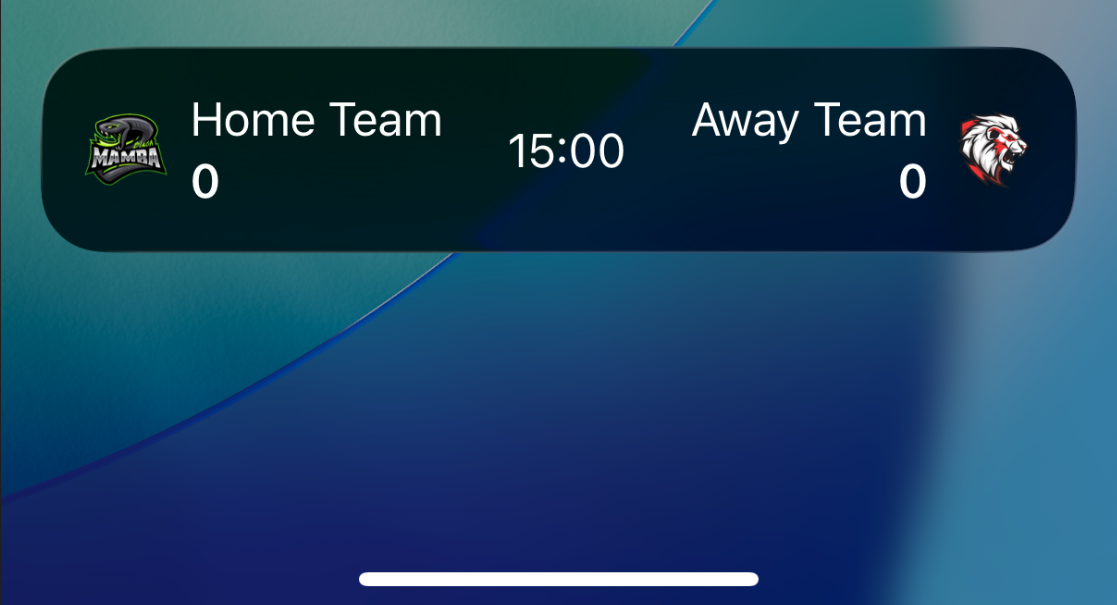
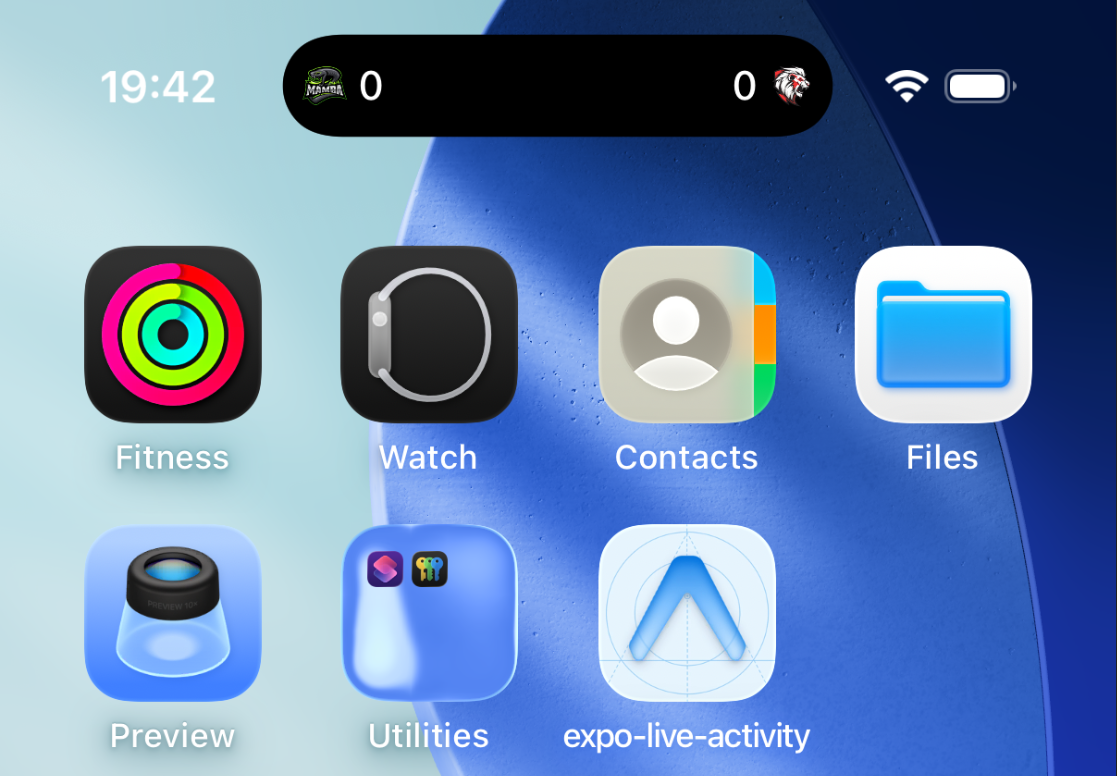
Run expo run:ios to launch the app and test your Live Activity. The widget should appear on the Lock Screen and Dynamic Island when you start an activity:
Method 2: Using a Package {#method-2-using-a-package}
This method uses the expo-live-activity package to handle native iOS complexity, allowing you to start, update, and stop Live Activities directly from your React Native code.
What you get:
- Simple API for managing Live Activities
- Customization options (colors, layout, padding, images, deep linking)
- Progress bars and timers support
- Push notification support for remote updates
- Dynamic Island configuration
Important notes:
- Library is in early development—breaking changes may occur in minor versions
- Requires iOS 16.2+ (push-to-start needs iOS 17.2+)
- Not supported in Expo Go—use Expo Dev Client
- Images must be under 4KB and placed in
assets/liveActivityfolder - Push token testing works best on physical devices (not simulators)
After creating our expo project;
- We need to install the expo-live-activity package.
npm install expo-live-activity- Add the config plugin to your
app.jsonorapp.config.js:
{
  "expo": {
    "plugins": ["expo-live-activity"]
  }
}- Then prebuild your app, that’s it.
npx expo prebuild --cleanNow you can start your expo app and directly access the api provided by the npm package. Here is how it looks, I made the javascript part similar to the swift entegration on the first method.
import { StatusBar } from "expo-status-bar";
import React, { useState } from "react";
import { StyleSheet, Text, TouchableOpacity, View } from "react-native";
import * as LiveActivity from "expo-live-activity";

const homeTeam = "Home Team";
const awayTeam = "Away Team";
const quarter = 1;

export default function Index() {
  const [activityId, setActivityId] = useState<string | null>(null);
  const [homeScore, setHomeScore] = useState(0);
  const [awayScore, setAwayScore] = useState(0);

  const buildState = (
    home: number,
    away: number,
    timeRemaining: string
  ): LiveActivity.LiveActivityState => {
    return {
      title: `${homeTeam} ${home} - ${away} ${awayTeam}`,
      subtitle: `Q${quarter} ${timeRemaining}`,
      progressBar: {
        progress: 0,
      },
      imageName: "home",
      dynamicIslandImageName: "away",
    };
  };

  const handleStartActivity = async () => {
    const state = buildState(homeScore, awayScore, "15:00");

    const config: LiveActivity.LiveActivityConfig = {
      backgroundColor: "#000000",
      titleColor: "#FFFFFF",
      subtitleColor: "#FFFFFF",
      progressViewTint: "#FFFFFF",
      progressViewLabelColor: "#FFFFFF",
      imagePosition: "left",
      imageAlign: "center",
      imageSize: { width: 30, height: 30 },
      contentFit: "cover",
      timerType: "digital",
      padding: 16,
    };

    const id = LiveActivity.startActivity(state, config);
    if (id) {
      setActivityId(id);
    }
  };

  const handleUpdateScore = async (team: "home" | "away", points: number) => {
    if (!activityId) return;

    const newHomeScore = team === "home" ? homeScore + points : homeScore;
    const newAwayScore = team === "away" ? awayScore + points : awayScore;

    setHomeScore(newHomeScore);
    setAwayScore(newAwayScore);

    const state = buildState(newHomeScore, newAwayScore, "12:34");
    LiveActivity.updateActivity(activityId, state);
  };

  const handleStopActivity = async () => {
    if (!activityId) return;

    const finalState = buildState(homeScore, awayScore, "00:00");
    LiveActivity.stopActivity(activityId, finalState);
    setActivityId(null);
    setHomeScore(0);
    setAwayScore(0);
  };

  return (
    <View style={styles.container}>
      <Text style={styles.title}>Football Scoreboard</Text>
      <StatusBar style="auto" />

      <View style={styles.scoreboard}>
        <View style={styles.team}>
          <Text style={styles.teamName}>{homeTeam}</Text>
          <Text style={styles.score}>{homeScore}</Text>
        </View>
        <Text style={styles.vs}>VS</Text>
        <View style={styles.team}>
          <Text style={styles.teamName}>{awayTeam}</Text>
          <Text style={styles.score}>{awayScore}</Text>
        </View>
      </View>

      {!activityId ? (
        <TouchableOpacity style={styles.button} onPress={handleStartActivity}>
          <Text style={styles.buttonText}>Start Live Activity</Text>
        </TouchableOpacity>
      ) : (
        <>
          <View style={styles.buttonRow}>
            <TouchableOpacity
              style={styles.scoreButton}
              onPress={() => handleUpdateScore("home", 6)}
            >
              <Text style={styles.buttonText}>Home TD (6)</Text>
            </TouchableOpacity>
            <TouchableOpacity
              style={styles.scoreButton}
              onPress={() => handleUpdateScore("home", 3)}
            >
              <Text style={styles.buttonText}>Home FG (3)</Text>
            </TouchableOpacity>
          </View>
          <View style={styles.buttonRow}>
            <TouchableOpacity
              style={styles.scoreButton}
              onPress={() => handleUpdateScore("away", 6)}
            >
              <Text style={styles.buttonText}>Away TD (6)</Text>
            </TouchableOpacity>
            <TouchableOpacity
              style={styles.scoreButton}
              onPress={() => handleUpdateScore("away", 3)}
            >
              <Text style={styles.buttonText}>Away FG (3)</Text>
            </TouchableOpacity>
          </View>

          <TouchableOpacity
            style={[styles.button, styles.stopButton]}
            onPress={handleStopActivity}
          >
            <Text style={styles.buttonText}>Stop Live Activity</Text>
          </TouchableOpacity>
        </>
      )}
    </View>
  );
}

const styles = StyleSheet.create({
  container: {
    flex: 1,
    backgroundColor: "#fff",
    alignItems: "center",
    justifyContent: "center",
    padding: 20,
  },
  title: {
    fontSize: 24,
    fontWeight: "bold",
    marginBottom: 20,
  },
  scoreboard: {
    flexDirection: "row",
    alignItems: "center",
    justifyContent: "space-around",
    width: "100%",
    marginBottom: 30,
  },
  team: {
    alignItems: "center",
  },
  teamName: {
    fontSize: 18,
    fontWeight: "600",
    marginBottom: 5,
  },
  score: {
    fontSize: 48,
    fontWeight: "bold",
  },
  vs: {
    fontSize: 24,
    fontWeight: "bold",
  },
  button: {
    marginVertical: 10,
    paddingVertical: 12,
    paddingHorizontal: 30,
    backgroundColor: "blue",
    borderRadius: 8,
  },
  stopButton: {
    backgroundColor: "red",
  },
  buttonText: {
    color: "white",
    fontSize: 16,
    fontWeight: "bold",
    textAlign: "center",
  },
  buttonRow: {
    flexDirection: "row",
    justifyContent: "space-around",
    width: "100%",
    marginBottom: 10,
  },
  scoreButton: {
    backgroundColor: "green",
    paddingVertical: 10,
    paddingHorizontal: 20,
    borderRadius: 8,
    marginHorizontal: 5,
    flex: 1,
  },
});
What’s Next?
You now have everything you need to ship Live Activities in your Expo app. The technical foundation is solid—whether you chose the native Swift approach or the package-based solution, you can control Live Activities directly from JavaScript.
Here are some ideas to take it further:
- Connect to real data: Hook up your Live Activity to backend events, WebSocket streams, or push notifications
- Enhance the UI: Add timers, progress indicators, animations, or custom layouts that match your brand
- Support multiple types: Create different Live Activity widgets for different use cases in your app
- Test thoroughly: Make sure your Live Activities work across different iOS versions and device types
The bridge between React Native and iOS is built. Now it’s time to make it shine with thoughtful design, smooth updates, and experiences that keep users coming back to your app.
If you run into any issues or have questions, feel free to check out the example repository or open an issue. Happy building!